
 Character Options
 LEGO
LEGO Flair Leisure
 Hasbro
 Mattel
 MGA
MGA Moose
Moose Spin Master
 Vtech Electronics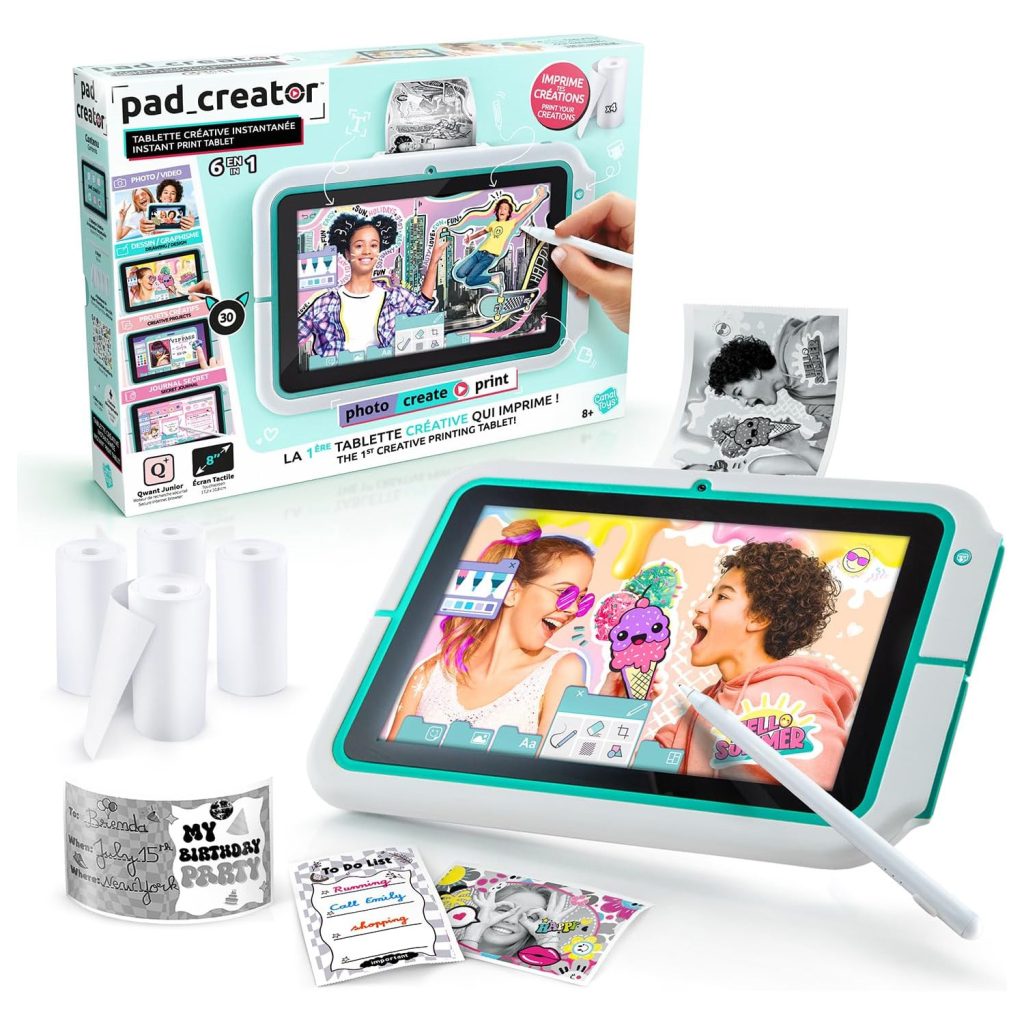
Instant Print Tablet Parent Guide
Instant Print Tablet Parent Guide
Instant Print Tablet Parent Guide gives parents a practical understanding of how this Canal Toys drawing tablet functions in everyday home use. This guide explains setup, printing expectations, paper use, age suitability, maintenance, troubleshooting and safety considerations. The goal is to help families support confident creative sessions while keeping the printing process predictable and well-managed.
What’s in the Box
The Instant Print Tablet typically includes the main tablet unit, a stylus, a built-in thermal printer, a starter roll of print paper and an instruction leaflet. Children use the stylus to draw directly onto the tablet surface and then press a button to produce a small printed version of their artwork. Because the printer uses thermal paper rather than ink, prints appear instantly without cartridges or drying time.
Families looking for additional product context can visit the Canal Toys brand page. This helps parents understand how the Instant Print Tablet fits within the wider Canal Toys creative range.
How It Works
While preparing this Instant Print Tablet Parent Guide, we examined how children move between drawing and printing. The tablet’s pressure-sensitive surface allows children to sketch using the stylus, and a single button sends the image to the thermal printer. Prints appear in seconds as monochrome outlines, giving children quick physical takeaways to share or collect.
Because the printer uses heat rather than ink, the process is quiet and mess-free. After printing, children often continue drawing to create new images or adjust shading before producing another print. The fast turnaround encourages short creative bursts, making the toy suitable for both focused art sessions and quick pick-up play.
Setup, Space & Batteries
Most versions of the Instant Print Tablet require batteries for printer operation. Parents should check the instruction leaflet and insert fresh batteries before first use. Once the paper roll is loaded and the device is powered on, children can begin drawing immediately.
A flat table, desk or craft mat provides the best surface for stable drawing. Because thermal paper is lightweight, parents may want to keep the starter roll and any replacements in a small container to prevent unspooling. The tablet itself does not require much space, but giving children a clear area supports smoother drawing strokes and easier handling.
Best Age Range & Suitability
The Instant Print Tablet is generally suitable for children aged 6 and above. Younger children enjoy the immediate gratification of seeing their drawings printed, while older children appreciate creating small scenes, patterns or character outlines to collect or trade with friends.
The set suits children who enjoy creative outlets, quick sketching and small craft keepsakes. It also works well for children who prefer minimal mess, as there are no inks, paints or washable materials to set up. The simple interface allows children to use the tablet independently once they understand how to load the paper and activate the print button.
Safety Notes
The tablet uses mild heat to activate the thermal printing process, so children should keep fingers clear of the printer slot during operation. Paper edges should be handled gently to avoid small tears. Parents should also supervise paper roll changes to ensure the internal components remain aligned.
The set should not be exposed to water or moisture, as this may affect both the drawing surface and the printer mechanism. Batteries must be secured correctly, and the compartment should remain closed during use.
Durability, Cleaning & Storage
The tablet is designed for repeated drawing and printing cycles, with a durable writing surface and a compact printer. Over time, heavy pressure may leave faint marks on the screen, but these do not affect functionality. If the stylus is misplaced, many models will work with a standard plastic-tipped stylus.
Cleaning involves wiping the drawing area with a soft, dry cloth. Parents should avoid abrasive cleaners. For storage, keep the tablet in a dry indoor location away from direct sunlight, as prolonged heat can cause thermal prints to darken. Paper rolls should be stored in their original packaging or a sealed container.
Common Issues & Troubleshooting
Prints appear faint: This may indicate worn batteries or paper inserted incorrectly. Replacing batteries or reloading the paper usually resolves the issue.
Paper not feeding: Ensure the roll is placed with the correct orientation and that the edges are cut cleanly. Gently advancing the paper before closing the compartment can help.
Screen not clearing fully: Some faint ghost lines are normal after extended use. Wiping with a clean cloth and reducing drawing pressure helps maintain clarity.
Tips
This Instant Print Tablet Parent Guide highlights how children can keep the experience engaging through simple creative prompts. Challenge children to design themed drawings—animals, patterns, characters or quick sketches—and build a small gallery of prints. These small goals encourage fine motor skills and sustained engagement.
Parents can also support organisation by providing a small folder or envelope where children can store their prints. This helps them build a collection over time and reduces loose paper around the house. Encouraging children to date or label their prints also introduces light journalling habits.
Alternatives
Families who enjoy instant-print creativity may also appreciate sticker-making kits, stencilling sets or digital-free drawing tablets with memory functions. These provide similar creative outlets with different levels of permanence.
If children prefer colour-based art, washable marker sets or water-based painting kits may be a better match. For older children, beginner digital drawing tablets offer more layered creative experiences while still supporting stylus-based drawing.
Quick FAQs
Does it require ink?
No. The printer uses thermal technology and works without cartridges.
Is the paper refillable?
Yes. Thermal rolls can be replaced easily.
Is the heat dangerous?
The printer uses mild heat. Children should avoid touching the slot during printing.
Can children use their own stylus?
Yes, as long as it has a plastic tip that won’t scratch the screen.
What does the Instant Print Tablet Parent Guide cover?
Setup, printing, troubleshooting, safety and creative activity suggestions.
Where Next?
Explore full product details on the Instant Print Tablet page.
For hands-on insights and practical impressions, visit the Instant Print Tablet Review.
Some links on our site are affiliate links. If you buy through them, we may earn a small commission — at no extra cost to you. 🎄